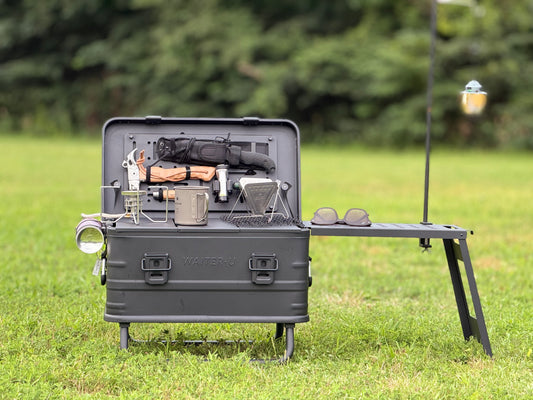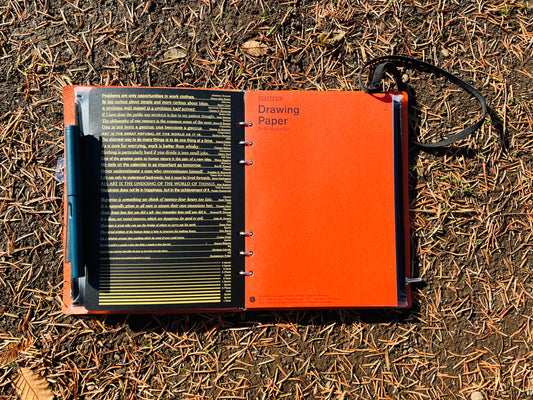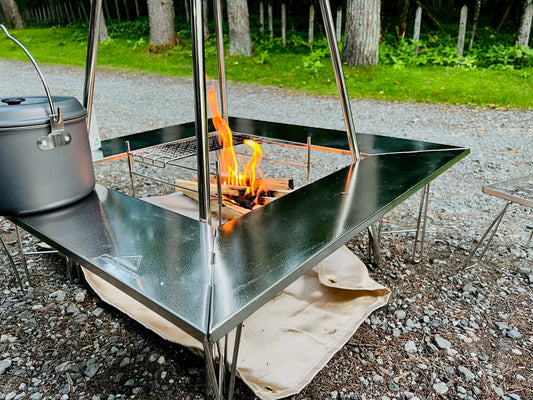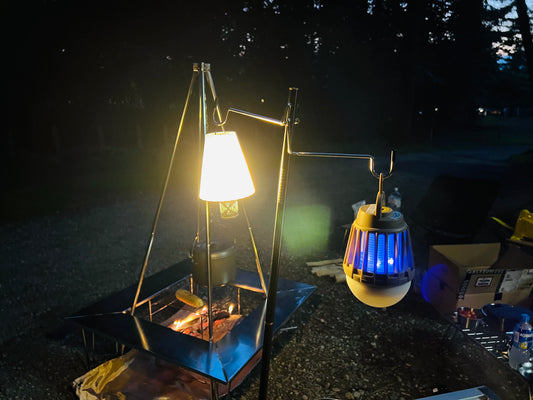

How do you preserve your camping memories?
I try to record my camping memories in two ways: photos and videos.
Because it allows you to vividly preserve memories with family and friends, and you often receive gratitude from those around you.
Isn't video editing difficult?
The Filmora I'm introducing today has an easy-to-use editing function,
Even beginners at video editing can rest assured.
Family camping is wonderful because it allows you to create lasting memories for your children.
I've heard of people who became famous by posting their personal records on YouTube.
This article is a promotional article.
Here is a video I edited after actually using Filmora for the first time.
The features used and editing methods will be explained later in the article, so please read to the end.
For video editing beginners, ease of editing is important.
Filmora 11 enhances this ease of editing and is more affordable than other editing software.
Edit videos of your camping and outdoor adventures to preserve your memories!
We are currently running an outdoor movie creation support campaign from April 28th to May 10th.
We are currently running a campaign where 40 lucky winners will receive luxurious outdoor equipment worth a total of 180,000 yen.

Filmora is currently running an easy-to-participate campaign.
You can participate simply by following and retweeting on Twitter, so at least do that to take part.
1. Follow our official Twitter account and retweet the outdoor video you'd like to create with Filmora.
We're giving away a total of 40 prizes worth 180,000 yen, including luxury outdoor equipment.
2. Sale offering up to 6,000 yen off (Filmora 1,500 yen off, Filmora + Filmstock 6,000 yen off)
3. Filmstock's new effects pack, "Outdoor Leisure Pack," is available for free download during the promotional period.
What kind of editing software is Filmora?
Filmora may not be the most well-known software, but it's feature-rich and easy to use.
- It has few operations that are difficult for beginners to understand, making it easy for anyone to try.
- Background music fade-in and fade-out can be set with a single button.
(Many other editing software programs don't allow you to do this with a single button.)
- You can easily create cinematic and stylish videos by simply applying the "Cinema 219" effect.
(Other editing software may require paid effects or custom images.)
- The speed lamp is easy to operate and can be set intuitively.
Most people won't feel like they can't do what they want with Filmora's editing software.
What I found inconvenient was the lack of an automatic subtitle transcription function, but thisVrew is a free software.This can be resolved by using both methods together.
- Automatic subtitle transcription function
⇒In addition to Fimora,Free software "Vrew"It can be used as a substitute.
I myself have a YouTube channel that's monetized (over 1000 subscribers, over 4000 hours of watch time per year), and I found that free subtitle software was perfectly sufficient.
The automatic subtitle function is only available in Adobe Premiere Pro versions released after February 2021, but Adobe Premiere Pro is ( Single plan: ¥28,776/yearGiven the high price (including tax), this is probably unavoidable.
Price of Fimora
If you're new to video editing, Filmora's one-year plan is recommended.
However, if you are certain you will be using it for a long time, a perpetual license will be more cost-effective.
"FilmstockThis is a service that provides a large amount of video material, such as background music.
It's not absolutely essential, but it can be a convenient item to have.
You can edit without using Filmstock, so it's not essential.
If you anticipate using it for more than a year, get a perpetual license.
Otherwise, choose the one-year plan!
The fact that it's cheaper than other companies is a great advantage for beginners.
| Plan Name | price | |
| 1-year plan | 6,980 Yen (tax included) | |
| Perpetual license | | |
| Filmora + Filmstock Great value annual plan | |
Upon closer inspection, the one-year plan and perpetual license include "NewBlue FX," "Boris FX," and "AI Portrait."
"NewBlue FX" includes excellent effects, which may be an extra charge in other editing software.
Personally, I was happy that these features were included. Additionally, the AI Portrait feature is an interesting function if you also do photo editing.
Filmora operating environment
Using Filmora software requires a minimum level of performance.
While it's not impossible for it to function even if it doesn't meet these specifications, this serves as a guideline for operation.
It would be best to try the free trial version to confirm that it works.
OS
Windows 7/Windows 8.1/Windows 10/Windows 11 (Only works on 64-bit OS)
CPU
Intel i5 or higher multi-core processor, 2GHz or faster (Intel 6th generation or later CPUs recommended)
RAM
4 GB RAM (8 GB required for HD and 4K video)
GPU
Intel HD Graphics 5000 or later. NVIDIA GeForce GTX 700 or later. AMD Radeon R5 or later. Please use the latest graphics driver.
How to update graphics drivers>>
disk
You need at least 10GB of free space.(SSD recommended)
How to use Fimora
Filmora's menu bar includes the following functions:
The most important elements are "Media," "Audio," and "Titles," and if you want to be more particular about editing, it's also useful to learn about "Effects" and "Transitions."
- Media ⇒ Refers to video and photo materials.
- Stock media ⇒ refers to materials provided by Filmora.
- Audio ⇒ Refers to background music or other types of music.
- Title ⇒ This refers to the text embedded within the video.
- Transition ⇒ Refers to the animation of switching between different elements.
- Effects ⇒ Refers to the processing of materials.
- Element ⇒ Refers to objects such as speech bubbles and arrows.
- Split display ⇒ Arranging multiple materials side by side
font


New features in the latest version (Filmora 11)
Automontage
Automontage is a feature that automatically creates videos by specifying background music and importing video footage.
This is useful if you want to create a simple video to the accompaniment of your favorite background music.
This is a convenient feature for people who already know which background music they want to use.
If you're not particular about background music, Instant Mode might be easier to use.
Simply import video clips and background music, and the AI will highlight and edit them, adding simple effects.
It is possible to create montage videos.
*Only available in the Windows version
Selecting Automontage mode will bring up a screen for selecting background music and materials.

After specifying the source material, click the "Analyze" button to generate the video.
You can also adjust the finer details in the detailed settings such as blur and RGB in the lower left corner of the screen.

Instant Mode
Instant Mode is a convenient feature that allows anyone to easily create a video automatically simply by specifying the video content.
- You can create videos simply by choosing from templates with preset effects and music, tailored to themes such as business scenes or vlogs, importing video clips, and changing the text overlays.
*Only available in the Windows version
Selecting Instant Mode will bring up a template selection screen.
Because you can choose based on a rough idea, even beginners who are not familiar with video editing can use it intuitively.

This time, I chose to make a travel photo vlog.
Selecting a template will take you to the video import screen. Drag and drop your editing materials to specify them.

After a short wait of a few minutes, the video will be created.
CreatedA portion of the video is available here.

Speed ramp
This speed ramp function allows you to freely change the video playback speed.
Having this or not makes a huge difference in the degree of editing freedom, so it's extremely important.
Moreover, while many other editing software programs have complicated settings, Filmora allows you to select them intuitively.
Instant Mode is a convenient feature that allows anyone to easily create a video automatically simply by specifying the video content.
This is a feature you'll definitely want to incorporate, especially if you want to create cinematic and stylish videos.
For example, if the material is used as is,The video gave a monotonous impression.is.
Use a speed ramp to do thisIf you vary the paceYou'll see a big difference.
- Variable playback speed within a single video clip
*Included in both Windows and Mac versions.
You can either select a template from the Tools > Speed tab, or freely configure it through customization.
Most users will find the template's speed ramp sufficient, but advanced users can customize it to fine-tune the settings to suit their materials.

Mask keyframe support
Keyframe support for masks is
Use a speed ramp to do thisIf you vary the paceYou'll see a big difference.
- By making masks keyframe-compatible, it's possible to apply masks to moving objects.
*Included in both Windows and Mac versions.
Other latest features
In addition to the features introduced here, the following features have also been added.
With even more features expected to be added, it's exciting to think that it will become even more convenient in the future.
Audio synchronization: Synchronizes video clips with audio clips recorded with an external microphone.
*Included in both Windows and Mac versions.
Stock media: In partnership with GIPHY, Pixabay, and Unsplash.
FX Plugins: Includes Boris FX and NewBlue FX.
*This plugin incurs additional costs separate from the main product.
Wondershare Drive: Provides 1GB of cloud storage, allowing you to save and share project files.
I actually tried editing a video using Filmora 11.
The finished video is here.
The editing screen looks like this. The seven thumbnails in the upper left are the videos that have been added as source material.
The top right is a preview screen of the completed video. The bottom half of the screen shows the editing details.

Add music

From the "Audio" menu, double-click your favorite song to add it to the video.
The added song is placed at the bottom of the editing screen. The song length has been cut to match the length of the video.
You can cut a track by selecting "Edit" from the menu or by right-clicking on the track and selecting "Cut".
Adding a title

Text is displayed at the beginning.
This involves selecting your desired title from the "Title" menu and adding it to the video.
This time, we've added "Summer Set Sunshine Title 2," and you can drag the title to change its position.&I'm moving elements by dragging and dropping, and changing the font.
Add an effect
In the video I tested this time, I added an effect called "Cinema 219" to give it a cinematic look.
There are also various other editing effects, and you can even add a mosaic effect to blur out people who appear in the image.
Speed ramp and keyframes

Filmora 11 allows for editing of the speed ramp, so I've added changes to the speed ramp at the beginning and end of the video.
It's a bit of a workaround, but I've added keyframes to create an animation that moves from left to right.
You can create animations freely and edit them however you like.
Adding a transition

We've added an animation called a "transition" to the parts where videos switch between each other.
A page-turning editing effect has been added. With over 500 transitions available in Filmora, there's almost nothing you can't do.
Fimora's 2022 Sale Information
In this video, I tried out the video editing features of Filmora.
Based on my own experience, even amateurs can earn tens of thousands of yen a month on YouTube if they persevere with video editing.
Making a living from YouTube is difficult, but even amateurs can definitely try it to earn some money as a hobby.
Recently, there have been many opportunities to utilize editing skills in private settings, such as weddings and pre-wedding photoshoots.
Currently, from April 28th to May 10th, there's a campaign supporting the creation of outdoor movies, so be sure to check it out.